

Processing API
Overview
Below, you can find a list of all supported Processing Engine conversions. Please refer to Processing Engine Overiew for more information about this system.
Security
If your account has security enabled, a valid policy and signature will be required for any and all processing requests. The processing engine accepts security parameters as a URL task:
https://cdn.filestackcontent.com /security=p:POLICY,s:SIGNATURE/ HANDLE
Please see our security documentation for more information regarding the generation of policies and signatures.
Legend
All task parameters listed here follow this pattern. Array types are presented as ordered lists of their respective types. Required fields are marked by an asterisk *.
| Name (Alias) | parameter type default value |
Control Tasks
Cache
cache=expiry:3600
Specify the amount of time for how long the file should be cached in our CDN. For example, cache=expiry:31536000 will set the cache duration for 1 year. You can also use cache=expiry:max and the same value will be set for the cache headers: “Cache-Control:public, max-age=31536000”. The cache can be set to false to ensure that you always receive a newly converted file. This setting is only recommended for testing purposes because every time a URL using cache=false loads, it will count against your conversion quota.
Parameters
| false (f) | boolean |
| expiry (e) | integer |
Store
store
Store the result of this transformation into your storage. By default, transformations are stored in temporary storage and cached for 30 days. Storing files can ensure that you don’t incur extra transformations when the cache expires every 30 days. It also allows you to create new handles from transformed URLs.
A request to a URL that contains this task will return a JSON response. Example:
https://cdn.filestackcontent.com/<apikey>/store/<url>Returns:
{
  "container": "my-bucket",
  "filename": "272262.png",
  "key": "brPb11lRQR67XKxC9aUQ-272262.png",
  "size": 4585441,
  "type": "image/png",
  "url": "https://cdn.filestackcontent.com/feAWPKHgR6SnJMRzsKVP"
}
Store task is capable of triggering workflow jobs. In order to execute a job on a stored file, you’ll need to pass an ID of a workflow you wish to trigger using the workflows parameter. Store task will respond with unique IDs of executed jobs. Example:
https://cdn.filestackcontent.com/<apikey>/store=workflows:["46c8344b-d737-4411-8cbc-edbf66ce6731","448d6764-6ba5-11eb-9439-0242ac130002"]/<url>Returns:
{
  "container": "my-bucket",
  "filename": "272262.png",
  "key": "brPb11lRQR67XKxC9aUQ-272262.png",
  "size": 4585441,
  "type": "image/png",
  "url": "https://cdn.filestackcontent.com/feAWPKHgR6SnJMRzsKVP"
  "workflows": {
    "46c8344b-d737-4411-8cbc-edbf66ce6731": {
      "jobid": "bd8a6508-7186-4ddf-985e-d91fa5aa5bf7"
    },
    "448d6764-6ba5-11eb-9439-0242ac130002": {
      "jobid": "da385844-6ba7-11eb-9439-0242ac130002"
    }
  }
}
Parameters
| filename (f) | string |
| location (l) | one of: “s3” “azure” “dropbox” “rackspace” “gcs” |
| path (p) | string |
| container (c) | string |
| region (r) | one of: “us-east-1” “us-west-1” “us-west-2” “eu-west-1” “eu-central-1” “ap-northeast-1” “ap-northeast-2” “ap-southeast-1” “ap-southeast-2” “sa-east-1” |
| access (a) | one of: “public” “private” |
| base64decode (b) | boolean |
| workflows (w) | array of workflow IDs |
Fallback
fallback=file:<file>,cache:<cache>
Returns default file if the source of the transformation does not work or the transformation fails.
If you are using a fallback handle that belongs to a different application than the one which runs transformation and it is secured with security policy, appropriate signature and policy with read call should be used:
/fallback=file:"<source>?policy=<policy>&signature=<signature>",cache:10/
You can read more about security policies here.
Examples
- Request without a fallback. DOC to DOC conversion will fail:
https://cdn.filestackcontent.com/<apikey>/output=f:doc/http://www.snee.com/xml/xslt/sample.doc - Fallback with handle:
https://cdn.filestackcontent.com/<apikey>/output=f:doc/fallback=file:grKLLdxJQgm3VU3dRWW6/http://www.snee.com/xml/xslt/sample.doc - Fallback with handle and 10-second cache:
https://cdn.filestackcontent.com/<apikey>/output=f:doc/fallback=file:grKLLdxJQgm3VU3dRWW6,cache:10/http://www.snee.com/xml/xslt/sample.doc - Fallback with handle (if fallback handle belongs to the same application)
https://cdn.filestackcontent.com/<apikey>/security=policy:<policy>,signature:<signature>/output=f:doc/fallbacke=file:grKLLdxJQgm3VU3dRWW6/http://www.snee.com/xml/xslt/sample.doc - Fallback to secured handle (only if it’s from another application than the source of the transformation):
https://cdn.filestackcontent.com/<apikey>/output=f:doc/fallback=file:"grKLLdxJQgm3VU3dRWW6?policy=<policy>&signature=<signature>"/http://www.snee.com/xml/xslt/sample.doc - Fallback to external URL:
https://cdn.filestackcontent.com/<apikey>/output=f:doc/fallback=file:"https://www.file.com/fallback"/http://www.snee.com/xml/xslt/sample.doc
Content Disposition
content=type:<type>,filename:<filename>
Sets Content-Disposition header for the given file.
| PARAMETER | VALUE | DESCRIPTION |
|---|---|---|
| type (t) | string inline |
One of:
attachment default value, indicates that file can be displayed inside the web page, or as the web page |
| filename (f) | string | Filename to use with attachment type. |
Examples
https://cdn.filestackcontent.com/<apikey>/content=t:attachment,f:"sample.jpg"/<handle>Image Restrictions
The maximum accepted image resolution is 100,000,000 pixels. For example, it can either be 10,000px x 10,000px or 5,000px x 20,000px.
Filestack will also not convert an image that is larger than 256 MB. Please contact us if you require the ability to process larger files.
Image Transformations
Image Size
imagesizeYou can use the imagesize task to get information about the width and height of the given image, for example:
https://cdn.filestackcontent.com/imagesize/HANDLE

{"height":1280,"width":1280}Resize
resize=height:200clip– preserving the aspect ratio, resize the image to be as large as possible while ensuring its dimensions are less than or equal to both those specified.crop– preserving the aspect ratio, ensure the image covers both provided dimensions by clipping/cropping to fit.max– do not enlarge if the dimensions of the provided image are already less than the specified width or height.scale– ignore the aspect ratio of the provided image and stretch to both provided dimensions.
clip (default) or max fit can be applied.catrom– Catmull-Rom splinelanczos2– Lanczos kernel with a=2lanczos3– Lanczos kernel with a=3 (default)mitchell– Mitchell-Netravali splinenearest– Nearest-neighbour interpolation
| PARAMETER | VALUES |
| width* (w) | integer (1 – 10000) |
| height* (h) | integer (1 – 10000) |
| fit (f) | one of: “clip” “crop” “scale” “max” |
| align (a) | one of: “top” “bottom” “left” “right” “faces” “center” or array of 2 strings: one of: “top” “bottom” one of: “left” “right” |
| filter (ft) | one of: “catrom” “lanczos2” “lanczos3” “mitchell” “nearest” |
- Use the original image CDN URL and add the desired resize values (height and width), or use the custom fits mentioned above.
Original Image

- Resize the image by manually inserting the width and height values to the image’s URL as follows:
https://cdn.filestackcontent.com/resize=width:100,height:200/HANDLE
/resize=height:200,width:100/
- It is also possible to use a custom fit to resize your image; the example below uses the
scalefit.
https://cdn.filestackcontent.com/resize=width:350,height:500,fit:scale/HANDLE
Crop
crop=dim:[x,y,width,height]| PARAMETER | VALUES |
| dim* (d) | array of 4 integers: xinteger (0 – 100000) yinteger (0 – 100000) widthinteger (1 – 100000) heightinteger (1 – 100000) |
- Use the cropping values to select the part of the image that you wish to highlight.
Original Image

- Crop the image by inputting the 4 required values. The example below shows the CDN used to crop the image.
https://cdn.filestackcontent.com/crop=dim:[0,200,1000,500]/HANDLE
Smart Crop
smart_crop| PARAMETER | VALUES | OPTIONS | DESCRIPTION |
|---|---|---|---|
| mode | string auto | face object auto |
When face value is used we will run face detection on the input image in order to provide the best results if the faces are present. You can specify the mode:object,object: to crop the image against a particular object, for example dog. |
| width* | integer (1-10000) | Width of the output image. | |
| height* | integer (1-10000) | One of:Height of the output image. | |
| fill_color | string | You can specify the color for the bars that appear when the file is cropped. You can use the colors listed in our Color Options. | |
| coords | booleanfalse | true false |
If true, this task will return a JSON object with the coordinates of the cropped area. |
- Basic smart crop (width and height are required parameters):
https://cdn.filestackcontent.com/smart_crop=width:400,height:400/HANDLE
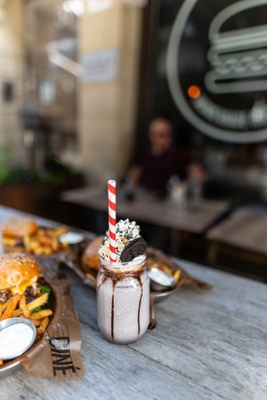
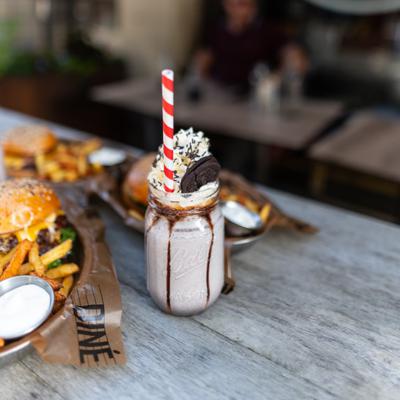
/smart_crop=width:400,height:400/- Smart crop using the
facemode:https://cdn.filestackcontent.com/smart_crop=width:400,height:400,mode:face/HANDLE
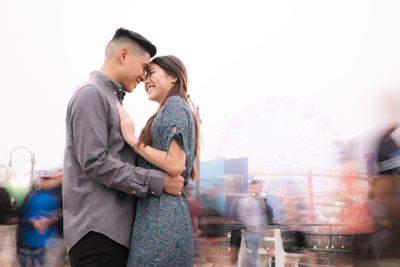
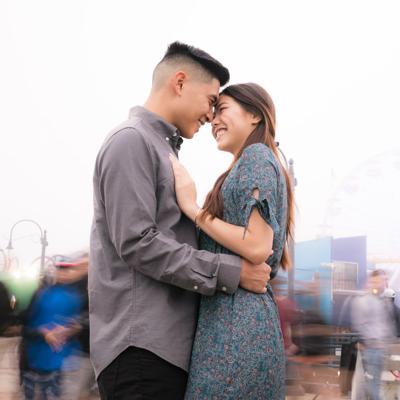
/smart_crop=w:400,h:400,mode:face/- Smart crop using the
objectmode:https://cdn.filestackcontent.com/smart_crop=width:400,height:400,mode:object,object:<your_object>/HANDLE
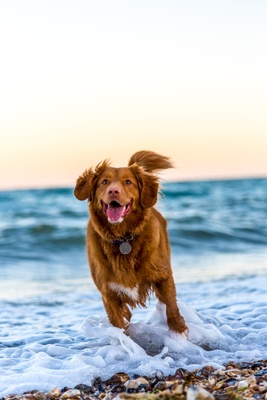
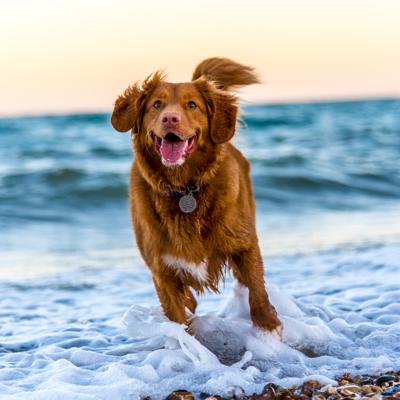
/smart_crop=w:400,h:400,mode:object,object:dog/- Change the color of the bars that appears when the file is cropped:
https://cdn.filestackcontent.com/smart_crop=width:400,height:400,mode:object,object:<your_object>,fill_color:<your_color>/HANDLE
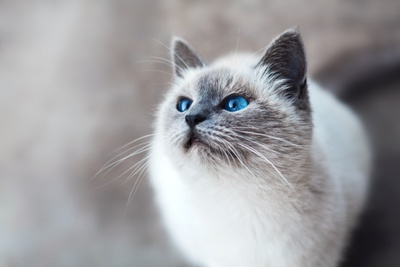
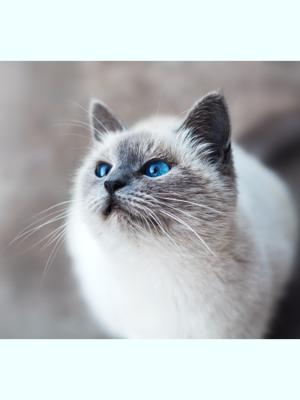
/smart_crop=w:400,h:400,mode:object,object:cat,fill_color:azure/- Smart crop with
coordsset totrue:https://cdn.filestackcontent.com/smart_crop=width:400,height:400,coords:true/HANDLE
{"coords": {"x": 0, "y": 317, "width": 634, "height": 634}}Rotate
rotate=deg:180| PARAMETER | VALUES |
| deg (d) | one of: “exif” or integer (0 – 359) |
| exif (e) | boolean |
| background (b) | color “FFFFFFFF” |
- Choose the number of degrees to rotate your image.
Original Image

- Rotate the image by the required number of degrees; the following example rotates it by 180 degrees.
https://cdn.filestackcontent.com/rotate=deg:180/HANDLE
Flip
flipOriginal Image

- Flip the image vertically by simply adding the
flipfeature to your CDN URL, as shown below:
https://cdn.filestackcontent.com/flip/HANDLE
Flop
flopOriginal Image

- Add the
flopfeature to your CDN URL to change the image’s position horizontally, as shown below:
https://cdn.filestackcontent.com/flop/HANDLE
/flop/
Watermark
watermark=position:[middle, center]| PARAMETER | VALUES |
| file* (f) | url_handle |
| size (s) | integer (0 – 500) |
| position (p) | one of: “top” “middle” “bottom” “left” “center” “right” or array of 2 strings: one of: “top” “middle” “bottom” one of: “left” “center” “right” |
Original Image

- Find the second image URL handle and add it as a watermark to the original image. You can also choose the size and position as shown below.
https://cdn.filestackcontent.com/watermark:f:<img_handle>,size:80,position:[bottom,%20left]/HANDLE
/watermark=f:HANDLE,size:80,position:[bottom,%20left]/
Compress
compress| PARAMETER | VALUES |
| metadata (m) | boolean false |
- Ensure you select a .JPG or .PNG and add the
compresskeyword to your cdn code.
https://cdn.filestackcontent.com/compress/HANDLE
Progressive JPEG
pjpg| PARAMETER | VALUES |
| quality (q) | integer (0 – 100) |
| metadata (m) | boolean false |
Original Image

- Add
pjpgto your CDN URL and choose the desired value. See the example below:
https://cdn.filestackcontent.com/pjpg=quality:25/HANDLE
/pjpg=quality:25/
Quality
quality| PARAMETER | VALUES |
| value* (v) | integer (1 – 100) |
Original Image

- Add
qualityto your CDN URL and choose the desired value. See the example below:
https://cdn.filestackcontent.com/quality=value:60/HANDLE
/quality=value:60/
Strip Metadata
no_metadata- Remove all metadata by adding the
no_metadatakeyword to your CDN URL.
https://cdn.filestackcontent.com/no_metadata/HANDLE
/no_metadata/
Image Enhancements
Upscale
upscale| PARAMETER | VALUES |
| noise (n) | one of: “none” “low” “medium” “high” |
| upscale (u) | boolean true |
| style (s) | one of: “artwork” “photo” |
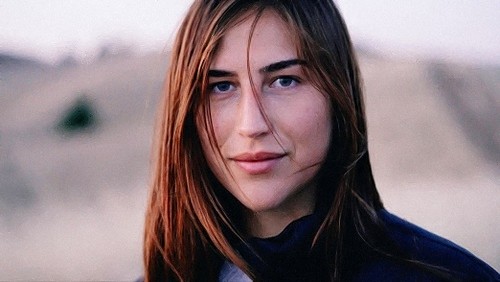
Enhance
enhance- Automatic image enhancement
https://cdn.filestackcontent.com/enhance/HANDLE
preset parameter.enhance=preset:<preset>| PRESET | DESCRIPTION |
|---|---|
| auto | This parameter automatically chooses a preset that does best enhancement to a photo. |
| vivid | This preset gives more depth and brightness to a photo. |
| cache | This preset works wonders on portraits and shots of people. It automatically scans each face in the photo and adjusts how much corrections to apply to each face. |
| beautify_plus | It is similar to beautify, but it applies stronger corrections and uses larger set of possible modifications. |
| fix_dark | This setting will do a terrific job on extremely underexposed photos or photos where a dark subject is in front of a very bright background. By turning off the contrast, maximum detail is retrieved from the shadow areas without blowing out the bright areas. |
| fix_noise | This setting automatically detects noise, and if detected, applies powerful noise removal to remove any grains from your photos while preserving details. Noise is automatically detected and applied depending on the ISO level and your camera make/model, and will therefore vary per photo. |
| fix_tint | Use this setting to remove abnormal tint (yellow, blue, green, etc.) from your photos. Abnormal tint occurs where the camera’s sensor picked up excess green from fluorescent lights, or excess red from the infrared heat of a person in the image, or excess blue from ultraviolet, or excess yellow from tungsten lights. |
| outdoor | This preset optimizes your landscape photographs with more color vibrancy. The contrast is adjusted to reveal slightly more detail in the shadow areas. |
| fireworks | This preset applies correction for dark night sky and sets off excess colors from fireworks. |
enhance=preset:fix_noise preset: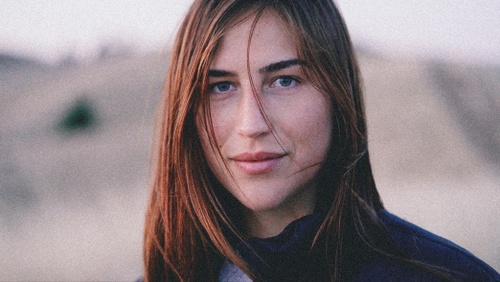
- Image enhancement with
fix_darkpreset:https://cdn.filestackcontent.com/enhance=preset:fix_dark/HANDLE - Chain enhance with other tasks:
https://cdn.filestackcontent.com/resize=w:500/enhance=preset:beautify/HANDLE
Red Eye Removal
redeyeThis task removes the red-eye effect from photos. The redeye task requires no additional parameters.
Image Borders and Effects
Rounded Corners
rounded_corners=blur:0.3| PARAMETER | VALUES |
| radius (r) | one of: “max” or integer (1 – 10000) |
| blur (l) | float (0 – 20) 0.3 |
| background (b) | color |
- The example below adds rounded corners with a small blur percentage and radius of 900.

/rounded_corners=blur:0.3,radius:900/
Vignette
vignette=amount:20| PARAMETER | VALUES |
| amount (a) | integer (0 – 100) 20 |
| blurmode (m) | one of: “gaussian” “linear” |
| background (b) | color |
- For the Vignette example, the image below uses an amount of 20 and the Gaussian blur mode.

/vignette=amount:20,blurmode:gaussian/
Polaroid
polaroid- The image below is displayed as a polaroid with a white border and a black background.

/polaroid=color:snow,background:black/
Torn Edges
torn_edges=spread:[1,10]| PARAMETER | VALUES |
| spread (s) | array of 2 integers: integer (1 – 10000) 1 integer (1 – 10000) 10 |
| background (b) | color |
- The sample image below uses a spread with integer values of 10 and 100. Remember that you can also add a background color.

/torn_edges=spread:[10,100]/
Shadow
shadow=opacity:60,vector:[4,4]- The following example adds a shadow with a gray background, 60 percent opacity, and 40, 40 as the shadow vectors.

/shadow=opacity:60,vector:[30,30],color:gray/
Circle
circle| PARAMETER | VALUES |
| background (b) | color |
- Use the circle keyword and select a background color. Pink was added to the image below.

/circle=background:pink/
Border
border=width:2- For the example below, a black border with a width value of 2 was added.

/border=width:2,color:black/
Image Filters
sharpen=amount:2| PARAMETER | VALUES |
| amount (a) | integer (0 – 20) 2 |
Original Image

- Use the sharpen task to enhance your image by boosting its clarity.

/sharpen=amount:8/
Blur
blur=amount:2| PARAMETER | VALUES |
| amount (a) | integer (0 – 20) 2 |
- Blur the entire image by selecting the amount of blur you want. The example below adds a level of 12 for blur.

/blur=amount:12/
Monochrome
monochrome
/monochrome/
Black and White
blackwhite=threshold:50| PARAMETER | VALUES |
| threshold (t) | integer (0 – 100) 50 |
- The example below uses the black-and-white task with a threshold of 38 to cast the image’s effect.

/blackwhite=threshold:38/
Sepia
sepia=tone:80| PARAMETER | VALUES |
| tone (t) | integer (0 – 100) 80 |

/sepia=tone:80/
Pixelate
pixelate=amount:2| PARAMETER | VALUES |
| amount (a) | integer (2 – 100) 2 |
- Pixelate the entire image by selecting the desired amount. The example below sets the pixelation level to 15.

/pixelate=amount:15/
Oil Paint
oil_paint=amount:2| PARAMETER | VALUES |
| amount (a) | integer (2 – 20) 2 |
- The example below returns an image with the oil paint effect, with a level of 6.

/oil_paint=amount:6/
Negative
negative
/negative/
Modulate
modulate=hue:155| PARAMETER | VALUES |
| brightness (b) | integer (0 – 10000) 100 |
| saturation (s) | integer (0 – 10000) 100 |
| hue (h) | integer (0 – 359) 0 |
- The example below plays with the saturation, hue, and brightness parameters to achieve the modulate effect.

/modulate=saturation:150,hue:15,brightness:100/

/modulate=hue:155/
Partial Pixelate
partial_pixelate=objects:[[x,y,width,height],[x,y,width,height]]| PARAMETER | VALUES |
| objects* (o) | array of: array of 4 integers: xinteger (0 – 10000) yinteger (0 – 10000) widthinteger (0 – 10000) heightinteger (0 – 10000) |
| amount (a) | integer (2 – 100) 10 |
| blur (l) | float (0 – 20) 4 |
| type (t) | one of: “rect” “oval” |
- In the example below, the coordinates were selected to partially pixelate some faces at a pixelation level of 50.

/partial_pixelate=objects:[[420,600,200,200],[420,600,200,200]],amount:50/
Partial Blur
partial_blur=objects:[[x,y,width,height],[x,y,width,height]]| PARAMETER | VALUES |
| objects* (o) | array of: array of 4 integers: xinteger (0 – 10000) yinteger (0 – 10000) widthinteger (0 – 10000) heightinteger (0 – 10000) |
| amount (a) | float (0 – 20) 10 |
| blur (l) | float (0 – 20) 4 |
| type (t) | one of: “rect” “oval” |
- For the example below, the coordinates were chosen as well as a blur amount of 10 and an oval type.

/partial_blur=objects:[[420,600,200,200],[420,600,200,200]],amount:10,type:oval/
Facial Detection
Detect Faces
detect_facesminsize and maxsize parameters are used to weed out objects that most likely are not faces. This can be an integer or a float between 0.01 and 10000. The default value is 0.35. If the value is larger than 1, it is used as the expected minimum/maximum size of face objects in pixels. For example, if the value is set to 200, the smallest/largest face object it detects will be 200×200 pixels. If the value set is less than 1 (e.g., 0.3), it filters out all face objects it detects that are smaller/larger than the middle/average object size by 30%.| PARAMETER | VALUES |
| maxsize (x) | float (0 – 10000) 0.35 |
| minsize (n) | float (0 – 10000) 0.35 |
| color (c) | color “#000000FF” |
| export (e) | boolean |
- When using the
detect_facestask, the image instantly numbers the detected faces based on proximity.

/detect_faces/
- Setting
export:trueexports all face objects to a JSON object. In the image above, the export task exports all face objects from the image to a JSON file.
[
    {
        "id": 1,
        "x": 226,
        "y": 215,
        "width": 50,
        "height": 68,
    },
    {
        "id": 2,
        "x": 103,
        "y": 364,
        "width": 36,
        "height": 40,
    },
    {
        "id": 3,
        "x": 359,
        "y": 377,
        "width": 35,
        "height": 38,
    }
]/detect_faces=export:true/
Crop Faces
crop_facesmode:thumb– adds a buffer around the face object by default. Part of the image inside the buffer is always resized to the specified dimensions (w & h).mode:crop– ignores the buffer around the face object.mode:fill– works in a similar manner to thumb mode, except that while thumb mode will always crop an image to fit in the whole face object while still trying to respect width and height transformations, fill mode will prioritze width and height parameters over displaying the whole face object.
faces parameter can be a single face object, an array of face objects, or you can use faces:all to choose all the detected face objects. This parameter controls which faces are included in your crop.| PARAMETER | VALUES |
| width (w) | integer (1 – 10000) |
| height (h) | integer (1 – 10000) |
| faces (f) | one of: “all” or integer (1 – 1000) 1 or array of: integer (1 – 1000) |
| maxsize (x) | float (0 – 10000) 0.35 |
| minsize (n) | float (0 – 10000) 0.35 |
| buffer (b) | integer (0 – 1000) |
| mode (m) | one of: “crop” “thumb” “fill” |
Original Image

- The following image displays a group of friends. The example below uses fill mode to select which faces to crop in the edited image.

/crop_faces=faces:[2,4],mode:fill/
Pixelate Faces
pixelate_facespixelate_faces task to quickly pixelate faces that appear in your images. The feature detects faces and pixelates them. Choose the buffer amount or add blur as desired. See a full list of available parameters below.| PARAMETER | VALUES |
| faces (f) | one of: “all” or integer (1 – 1000) or array of: integer (1 – 1000) |
| maxsize (x) | float (0 – 10000) 0.35 |
| minsize (n) | float (0 – 10000) 0.35 |
| buffer (b) | integer (0 – 1000) |
| amount (a) | integer (2 – 100) 10 |
| blur (l) | float (0 – 20) 4 |
| type (t) | one of: “rect” “oval” |
- The example below uses the faces parameter and an array of values to select which faces to pixelate.

/pixelate_faces=type:rect,faces:[2,3,4,5],amount:30/
Blur Faces
blur_facesBlur_faces task to automatically detect and blur multiple faces.| PARAMETER | VALUES |
| faces (f) | one of: “all” or integer (1 – 1000) or array of: integer (1 – 1000) |
| maxsize (x) | float (0 – 10000) 0.35 |
| minsize (n) | float (0 – 10000) 0.35 |
| buffer (b) | integer (0 – 1000) |
| amount (a) | float (0 – 20) 10 |
| blur (l) | float (0 – 20) 4 |
| type (t) | one of: “rect” “oval” |
- The blur example below uses the faces parameter and an array of values to select which faces to blur. Additionally, it specifies the blur type to be oval.

/blur_faces=type:oval,faces:[2,3,4,5],blur:18/
File Conversions
File Type
output
This task converts an input file into the specified output format.
Parameters
| PARAMETER | VALUE | DESCRIPTION |
|---|---|---|
| format (f) | string | Defines an output file format. One of: “doc” “docx” “html” “jpg” “odp” “ods” “odt” “pjpg” “pdf” “png” “ppt” “pptx” “svg” “txt” “webp” “xls” “xlsx” |
| page (p) | integer (1-99999) | Defines a number of pages of output file. |
| density (d) | integer (1-500) | Defines a density of output file. It will adjust the resolution when converting documents like PowerPoint, PDF, AI and EPS files to image formats like JPG or PNG. Higher density values mean higher resolutions, which will improve the image quality. |
| compress © | booleanfalse | Defines if the file should be compressed. |
| quality (q) | string or integer (1-100)95 |
Defines a quality of the output file. When “input” the input file quality will be preserved. |
| secure (s) | booleanfalse | Defines if the HTML or SVG file should be stripped of any insecure tags (HTML sanitization). |
| docinfo (i) | booleanfalse | Defines a number of pages and the dimensions of the input document and returns it in JSON format. |
| strip (t) | booleanfalse | Defines if the embedded file metadata should be removed. |
| colorspace (o) | string | Defines a colorspace of output file. One of: “rgb” “cmyk” “input” |
| background (b) | string | Defines a background color of output file. |
| pageformat (a) | string | Defines a page format of output file. One of: “a3” “a4”” “a5”” “b4” “b5”” “letter” “legal” “tabloid” |
| pageorientation ® | string | Defines a page orientation of output file. One of: “landscape” “portrait” |
| engine (e) | string | Defines a conversion engine that should be used to process. One of: “libre” : Basic Conversion Engine “auto” : Advanced Conversion Engine Note: “auto” requires the Advanced Conversion Engine Add-on enabled. |
Examples
- Convert file to PDF with landscape orientation using the handle:
https://cdn.filestackcontent.com/output=format:pdf,pageorientation:landscape/HANDLE - Convert file to JPG with quality=70 using the external URL:
https://cdn.filestackcontent.com/APIKEY/output=format:jpg,quality:70/EXTERNAL_URL - Convert file to PDF using our Advanced Conversion Engine:
https://cdn.filestackcontent.com/output=f:pdf,engine:auto/HANDLE
Auto Image Conversion
auto_image
This task automatically changes the encoding of the image based on the user agent and therefore provides better compression and quality characteristics compared to their older JPEG and PNG counterparts.
Currently, Filestack supports automatic conversion to WebP and JPEG XR.
WebP is natively supported in Google Chrome, Firefox, Edge, Opera, and by many other tools and software libraries.
For example this 1.42 MB JPEG image, after applying resize and compress tasks would have 48.45 KB:
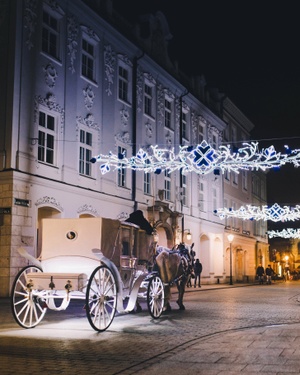
JPEG 48.45 KB
If you are using auto_image task and one of the supported browsers you should see that it’s delivered in a WebP format and it’s size is 44.84 KB.
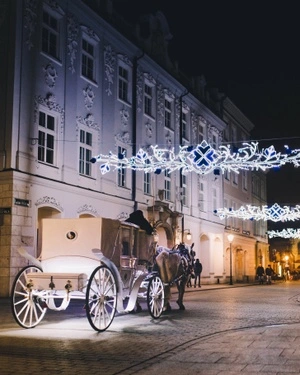
WebP 44.84 KB
You can read more about benefits of using WebP at https://developers.google.com/speed/webp/.
To see the current browser support for each supported next-gen format, check out the entries below:
Examples
- Automatic image encoding:
https://cdn.filestackcontent.com/auto_image/HANDLE - Chaining with other tasks:
https://cdn.filestackcontent.com/auto_image/resize=width:400,fit:max/compress/HANDLE
Animate (Images to GIF)
animate
Animate task converts set of images to a GIF file.
| PARAMETER | VALUE | DESCRIPTION |
|---|---|---|
| delay | integer1000 | Defines a delay between frames (in milliseconds). |
| loop | integer0 | Defines how many times images should be displayed,0 = loop forever. |
| width | integermax | Output animation width. By default it’s the width of the largest image. |
| height | integermax | Output animation height. By default it’s the height of the largest image. |
| fit | stringclip | Possible values: clip scale crop |
| align | string|array(2) center | Possible values: top right bottom left center middle or array of 2 strings: 1. one of: top bottom middle 2. one of: left right center |
| background | stringtransparent | For example: transparent, black, white, red. |
Examples
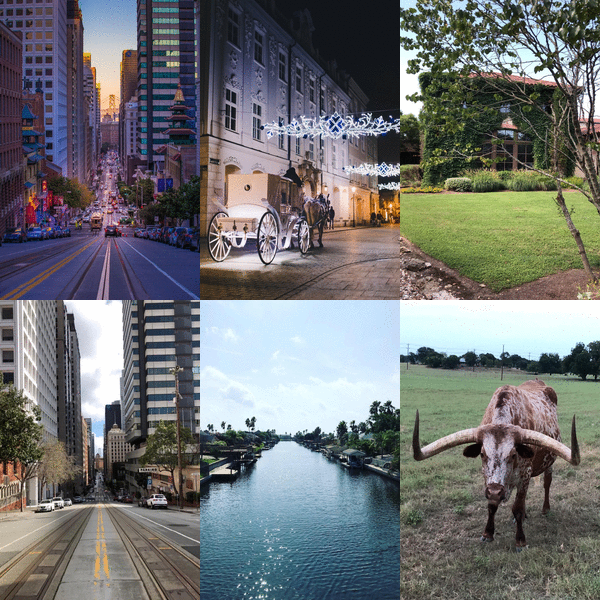
- Animate images every second in a loop and produce 200×300 GIF file:
https://cdn.filestackcontent.com/animate=fit:scale,width:200,height:300/[HANDLE1,HANDLE2,HANDLE3,HANDLE4,HANDLE5]
Examples
| NAME | VALUE |
|---|---|
| Maximum file size of single image | 256 MB |
| Maximum width of single image | 1800 px |
| Maximum height of single image | 1800 px |
| Allowed file formats | JPEG PNG SVG BMP TIFF GIF |
Collage
collage=files:[0ZgN5BtJTfmI1O3Rxhce]
The collage task accepts an array of Filestack file handles, storage aliases, or external urls. These files are appended in order to the base file of the transformation URL. Altogther the base image and the passed files are the images that will comprise the collage. The order in which they appear in the array dictates how the images will be arranged.
Both width and height are required. The images passed to this task will be resized using fit:clip (resize) so that the output image is close to the specified dimension parameters. The width parameter takes precedence over the height parameter.
Parameters
| files* (f) | array of handles |
| margin (m) | integer (1 – 100) 10 |
| width* (w) | integer (1 – 10000) |
| height* (h) | integer (1 – 10000) |
| color (c) | color “white” |
| fit (i) | one of: “auto” “crop” |
| autorotate (a) | boolean false |
display: inline-block; line-height: 16px;
ASCII
ascii
Take any image file and turn it into an HTML file of ASCII Art.
reverse reverses the character set used to generate the ASCII output. Works well with dark backgrounds. Requires color:true.
size specifies the size of the returned file as a percentage of the original.
Parameters
URL Screenshot
urlscreenshot
Note: This only works with external URLs, following the format:
https://cdn.filestackcontent.com/APIKEY/urlscreenshot/FULL_URL
The URL screenshot task will not work for content that is located in areas that require you to login. If the content is not publicly visible, then it will not be captured.
Parameters
| agent (a) | one of: “desktop” “mobile” |
| width (w) | integer (1 – 1920) 1024 |
| height (h) | integer (1 – 8000) 768 |
| mode (m) | one of: “all” “window” |
| delay (d) | integer (0 – 20000) 1000 |
| orientation (o) | one of: “portrait” “landscape” |
| device (e) | string “” |
QR Code
qr
This task generates a QR code that encodes URL to the specified resource. You can pass in a solitary Filestack handle or a single publicly available external URL. It does not perform any operations on the underlying file data. This task checks if the resource is available and then encodes the URL.
Parameters
| PARAMETER | VALUE | OPTIONS | DESCRIPTION |
|---|---|---|---|
| version | integer (1-40)1 | Specify the number of the white and black modules in use. Value 1 reffers to 21 × 21 modules, each higher version number comprises 4 additional modules per side. | |
| error_correction | stringM | L M Q H | Specify the error correction parameter to restore data if the code is dirty or damaged. One of the following levels: L(7%), M(15%), Q(25%), H(30%). The approx percentage of error correction capability is presented in brackets. |
| format | stringpng | svgpng | Specify the format of the output. One of: svg or png |
Below you can see the example of the result:

Examples
- Create QR code using the handle:
https://cdn.filestackcontent.com/qr/HANDLE - Create QR code using the external URL:
https://cdn.filestackcontent.com/qr/EXTERNAL_URL - Create QR code using additional parameters of this task:
https://cdn.filestackcontent.com/qr=version:4,error_correction:L,format:svg/HANDLE
ZIP
zip
This task takes the file or files that are passed into it and compresses them into a zip file. You can pass in a solitary Filestack handle, a single external url, a Filestack storage alias, or an array of handles and urls to be zipped. The zip task has no additional parameters.
Examples
- Create a zip archive using the array of handles:
https://cdn.filestackcontent.com/APIKEY/zip/[HANDLE1,HANDLE2] - Create a zip archive using the array of URLs:
https://cdn.filestackcontent.com/APIKEY/zip/[URL1,URL2] - Create a zip archive combining the array of handles and URLs:
https://cdn.filestackcontent.com/APIKEY/zip/[HANDLE1,URL1] - Create a zip archive with the custom filename using the Content Disposition task:
https://cdn.filestackcontent.com/APIKEY/zip/content=filename:"filename.zip"/[URL1,URL2]
Document Transformations
PDF Info
Get information about PDF document. This task returns following information:
pdfinfo
| PARAMETER | VALUE |
|---|---|
| colorinfo | booleanfalse |
Response
{
  "colorinfo": [
    {
      "c": 0.1442,
      "k": 0.61787,
      "m": 0.18234,
      "y": 0.19159
    },
    {
      "c": 0.18357,
      "k": 0.44799,
      "m": 0.30939,
      "y": 0.27883
    }
  ],
  "created": "2017-07-13T11:59:59-05",
  "encrypted": false,
  "hasform": false,
  "hasjavascript": false,
  "isgrayscale": false,
  "isoptimized": true,
  "istagged": true,
  "pages": 2,
  "pagesize": {
    "height": 792,
    "paper": "Letter",
    "width": 612
  },
  "pdfversion": "1.7",
  "protected": false,
  "updated": "2017-07-13T12:00:01-05"
}| PARAMETER | DESCRIPTION |
|---|---|
| created | When the document was originally created. |
| updated | When the document was updated. |
| pdfversion | PDF document version) |
| protected | Determines if the document is password protected. |
| encrypted | Determines if the document is encrypted. |
| istagged | Determines if there is any PDF Tag available in the document. |
| isoptimized | Determines if the media in the document are optimized. |
| isgrayscale | This is true if all the pages of the document are grayscale. |
| hasform | Determines if the document has interactive forms. |
| hasjavascript | Determines if the document has embedded JavaScript code. |
| pages | Number of pages. |
| pagesize | Width, height and papersize of the document. |
| colorinfo | Color information (CMYK) about each page of the document. |
Examples
- Get color information:
https://cdn.filestackcontent.com/output=f:pdf/pdfinfo=colorinfo:true/HANDLE
PDF Create
Merge files to create a separate PDF file using an array of Filestack handles.
This is a premium feature. Please contact our Support Team.
pdfcreate
Note: This only works with Filestack handles.
| PARAMETER | VALUE | DESCRIPTION |
|---|---|---|
| engine (e) | string poppler | Conversion engine to use. Available options are: poppler or mupdf. Results and performance may vary for each as they use different graphic libraries. |
Example
http://cdn.filestackcontent.com/pdfcreate/[handle1,handle2]PDF Conversions
Converting PDF to specific orientation, pageformat and specific pages.
pdfconvert
| PARAMETER | VALUE | DESCRIPTION |
|---|---|---|
| pageorientation | stringportrait | “landscape” or “portrait” |
| pageformat | stringa4 | “a2” “a3” “a4” “a5” “b4” “b5” “letter” “legal” “tabloid” |
| pages | pagerange | Any combination of pages or ranges, for example [1,3,6] or [3-5,6-7] or [1-3,5] |
| metadata | stringtrue | true means that new file will be created with the same metadata as the original file. This is the default behaviour.
false means that new file will be created with empty metadata. |
Examples
- Convert to specific
orientationandformat:https://cdn.filestackcontent.com/output=f:pdf/pdfconvert=pageorientation:landscape,pageformat:a3/HANDLE - With specific
page range.https://cdn.filestackcontent.com/output=f:pdf/pdfconvert=pageorientation:landscape,pageformat:a3,pages:[2,3,4]/HANDLE
PDF Monochrome
Convert PDF to black and white version.
monochrome
Examples
- Convert some of the PDF pages to specific orientation and format in black and white:
https://cdn.filestackcontent.com/output=f:pdf/pdfconvert=pageorientation:landscape,pageformat:a3,pages:[2,3,4]/monochrome/HANDLE
Document to Images
Convert all (or selected range) document pages to images in one API call.
This is a premium feature. Please contact our Support Team.
doc_to_images
| PARAMETER | VALUE | DESCRIPTION |
|---|---|---|
| pages | pagerange | Any combination of pages or ranges, for example [1,3,6] or [3-5,6-7] or [1-3,5] |
| engine | string imagemagick | Conversion engine to use. Available options are: imagemagick, poppler and mupdf. Results and performance may vary for each as they use different graphic libraries. |
| format | stringjpg | Output format for images, jpg or png. |
| quality | integer (1-100)95 | Output quality for images. |
| density | integer (20-500)72 | Density will adjust the resolution when converting document pages to images. Higher density values mean higher resolutions, which will improve the image quality. |
| hidden_slides | booleanfalse | Convert hidden slides from ppt and pptx files. |
Response
Lets assume that your document has 6 pages. When you run /doc_to_images/ task like this:
http://cdn.filestackcontent.com/doc_to_images/handleYou will receive application/json response with the ordered list of image URLs.
[
  "http://cdn.filestackcontent.com/doc_to_images@1/handle",
  "http://cdn.filestackcontent.com/doc_to_images@2/handle",
  "http://cdn.filestackcontent.com/doc_to_images@3/handle",
  "http://cdn.filestackcontent.com/doc_to_images@4/handle",
  "http://cdn.filestackcontent.com/doc_to_images@5/handle",
  "http://cdn.filestackcontent.com/doc_to_images@6/handle"
 ]
Please notice the syntax:
doc_to_images@N
where N is the number of the image. Those numbers do not match page numbers (if you use page ranges) and are used only as unique identifiers for the images in the list.
Examples
- Convert specific page range with high density
http://cdn.filestackcontent.com/doc_to_images=pages:[1-3,5],density:300/handle - Ignore hidden slides from the
pptxfilehttp://cdn.filestackcontent.com/doc_to_images=pages:[1-3,5],density:300,hidden_slides:false/handle - Change output format from
jpgtopnghttp://cdn.filestackcontent.com/doc_to_images=pages:[1-3,5],format:png/handle - Use external URL
http://cdn.filestackcontent.com/APIKEY/doc_to_images=pages:[1-3,5]/http://www.snee.com/xml/xslt/sample.doc
Audio and Video
Video and audio transcoding overview
Currently, depending on the device in use, video and audio files can be saved in different formats. Our video and audio transcoding features help with converting the files to the type and format you would like to use in your application.
Video and Audio Transcoding are included on the Grow and higher plans.
Please learn more about our Video and Audio Transformations here.
Color Options
Many of the Filestack conversion options allow you to set a color for the background, border or other parameter. The following is a list of defined color options. You can set any color you want using the hexadecimal (or shortened hexadecimal) code, but there is a set list of defined color words Filestack accepts.
| Name | Color | Hex |
|---|---|---|
aliceblue |
F0F8FFFF |
|
antiquewhite |
FAEBD7FF |
|
aqua |
00FFFFFF |
|
aquamarine |
7FFFD4FF |
|
azure |
F0FFFFFF |
|
beige |
F5F5DCFF |
|
bisque |
FFE4C4FF |
|
black |
000000FF |
|
blanchedalmond |
FFEBCDFF |
|
blue |
0000FFFF |
|
blueviolet |
8A2BE2FF |
|
brown |
A52A2AFF |
|
burlywood |
DEB887FF |
|
cadetblue |
5F9EA0FF |
|
chartreuse |
7FFF00FF |
|
chocolate |
D2691EFF |
|
coral |
FF7F50FF |
|
cornflowerblue |
6495EDFF |
|
cornsilk |
FFF8DCFF |
|
crimson |
DC143CFF |
|
cyan |
00FFFFFF |
|
darkblue |
00008BFF |
|
darkcyan |
008B8BFF |
|
darkgoldenrod |
B8860BFF |
|
darkgray |
A9A9A9FF |
|
darkgreen |
006400FF |
|
darkgrey |
A9A9A9FF |
|
darkkhaki |
BDB76BFF |
|
darkmagenta |
8B008BFF |
|
darkolivegreen |
556B2FFF |
|
darkorange |
FF8C00FF |
|
darkorchid |
9932CCFF |
|
darkred |
8B0000FF |
|
darksalmon |
E9967AFF |
|
darkseagreen |
8FBC8FFF |
|
darkslateblue |
483D8BFF |
|
darkslategray |
2F4F4FFF |
|
darkslategrey |
2F4F4FFF |
|
darkturquoise |
00CED1FF |
|
darkviolet |
9400D3FF |
|
deeppink |
FF1493FF |
|
deepskyblue |
00BFFFFF |
|
dimgray |
696969FF |
|
dimgrey |
696969FF |
|
dodgerblue |
1E90FFFF |
|
firebrick |
B22222FF |
|
floralwhite |
FFFAF0FF |
|
forestgreen |
228B22FF |
|
fractal |
808080FF |
|
fuchsia |
FF00FFFF |
|
gainsboro |
DCDCDCFF |
|
ghostwhite |
F8F8FFFF |
|
gold |
FFD700FF |
|
goldenrod |
DAA520FF |
|
gray0 |
000000FF |
|
gray1 |
030303FF |
|
gray2 |
050505FF |
|
gray3 |
080808FF |
|
gray4 |
0A0A0AFF |
|
gray5 |
0D0D0DFF |
|
gray6 |
0F0F0FFF |
|
gray7 |
121212FF |
|
gray8 |
141414FF |
|
gray9 |
171717FF |
|
gray10 |
1A1A1AFF |
|
gray11 |
1C1C1CFF |
|
gray12 |
1F1F1FFF |
|
gray13 |
212121FF |
|
gray14 |
242424FF |
|
gray15 |
262626FF |
|
gray16 |
292929FF |
|
gray17 |
2B2B2BFF |
|
gray18 |
2E2E2EFF |
|
gray19 |
303030FF |
|
gray20 |
333333FF |
|
gray21 |
363636FF |
|
gray22 |
383838FF |
|
gray23 |
3B3B3BFF |
|
gray24 |
3D3D3DFF |
|
gray25 |
404040FF |
|
gray26 |
424242FF |
|
gray27 |
454545FF |
|
gray28 |
474747FF |
|
gray29 |
4A4A4AFF |
|
gray30 |
4D4D4DFF |
|
gray31 |
4F4F4FFF |
|
gray32 |
525252FF |
|
gray33 |
545454FF |
|
gray34 |
575757FF |
|
gray35 |
595959FF |
|
gray36 |
5C5C5CFF |
|
gray37 |
5E5E5EFF |
|
gray38 |
616161FF |
|
gray39 |
636363FF |
|
gray40 |
666666FF |
|
gray41 |
696969FF |
|
gray42 |
6B6B6BFF |
|
gray43 |
6E6E6EFF |
|
gray44 |
707070FF |
|
gray45 |
737373FF |
|
gray46 |
757575FF |
|
gray47 |
787878FF |
|
gray48 |
7A7A7AFF |
|
gray49 |
7D7D7DFF |
|
gray50 |
7F7F7FFF |
|
gray51 |
828282FF |
|
gray52 |
858585FF |
|
gray53 |
878787FF |
|
gray54 |
8A8A8AFF |
|
gray55 |
8C8C8CFF |
|
gray56 |
8F8F8FFF |
|
gray57 |
919191FF |
|
gray58 |
949494FF |
|
gray59 |
969696FF |
|
gray60 |
999999FF |
|
gray61 |
9C9C9CFF |
|
gray62 |
9E9E9EFF |
|
gray63 |
A1A1A1FF |
|
gray64 |
A3A3A3FF |
|
gray65 |
A6A6A6FF |
|
gray66 |
A8A8A8FF |
|
gray67 |
ABABABFF |
|
gray68 |
ADADADFF |
|
gray69 |
B0B0B0FF |
|
gray70 |
B3B3B3FF |
|
gray71 |
B5B5B5FF |
|
gray72 |
B8B8B8FF |
|
gray73 |
BABABAFF |
|
gray74 |
BDBDBDFF |
|
gray75 |
BFBFBFFF |
|
gray76 |
C2C2C2FF |
|
gray77 |
C4C4C4FF |
|
gray78 |
C7C7C7FF |
|
gray79 |
C9C9C9FF |
|
gray80 |
CCCCCCFF |
|
gray81 |
CFCFCFFF |
|
gray82 |
D1D1D1FF |
|
gray83 |
D4D4D4FF |
|
gray84 |
D6D6D6FF |
|
gray85 |
D9D9D9FF |
|
gray86 |
DBDBDBFF |
|
gray87 |
DEDEDEFF |
|
gray88 |
E0E0E0FF |
|
gray89 |
E3E3E3FF |
|
gray90 |
E5E5E5FF |
|
gray91 |
E8E8E8FF |
|
gray92 |
EBEBEBFF |
|
gray93 |
EDEDEDFF |
|
gray94 |
F0F0F0FF |
|
gray95 |
F2F2F2FF |
|
gray96 |
F5F5F5FF |
|
gray97 |
F7F7F7FF |
|
gray98 |
FAFAFAFF |
|
gray99 |
FCFCFCFF |
|
gray100 |
FFFFFFFF |
|
gray |
7E7E7EFF |
|
green |
008000FF |
|
greenyellow |
ADFF2FFF |
|
grey |
808080FF |
|
honeydew |
F0FFF0FF |
|
hotpink |
FF69B4FF |
|
indianred |
CD5C5CFF |
|
indigo |
4B0082FF |
|
ivory |
FFFFF0FF |
|
khaki |
F0E68CFF |
|
lavender |
E6E6FAFF |
|
lavenderblush |
FFF0F5FF |
|
lawngreen |
7CFC00FF |
|
lemonchiffon |
FFFACDFF |
|
lightblue |
ADD8E6FF |
|
lightcoral |
F08080FF |
|
lightcyan |
E0FFFFFF |
|
lightgoldenrodyellow |
FAFAD2FF |
|
lightgray |
D3D3D3FF |
|
lightgreen |
90EE90FF |
|
lightgrey |
D3D3D3FF |
|
lightpink |
FFB6C1FF |
|
lightsalmon |
FFA07AFF |
|
lightseagreen |
20B2AAFF |
|
lightskyblue |
87CEFAFF |
|
lightslategray |
778899FF |
|
lightslategrey |
778899FF |
|
lightsteelblue |
B0C4DEFF |
|
lightyellow |
FFFFE0FF |
|
lime |
00FF00FF |
|
limegreen |
32CD32FF |
|
linen |
FAF0E6FF |
|
magenta |
FF00FFFF |
|
maroon |
800000FF |
|
mediumaquamarine |
66CDAAFF |
|
mediumblue |
0000CDFF |
|
mediumorchid |
BA55D3FF |
|
mediumpurple |
9370DBFF |
|
mediumseagreen |
3CB371FF |
|
mediumslateblue |
7B68EEFF |
|
mediumspringgreen |
00FA9AFF |
|
mediumturquoise |
48D1CCFF |
|
mediumvioletred |
C71585FF |
|
midnightblue |
191970FF |
|
mintcream |
F5FFFAFF |
|
mistyrose |
FFE4E1FF |
|
moccasin |
FFE4B5FF |
|
navajowhite |
FFDEADFF |
|
navy |
000080FF |
|
none |
000000FF |
|
oldlace |
FDF5E6FF |
|
olive |
808000FF |
|
olivedrab |
6B8E23FF |
|
orange |
FFA500FF |
|
orangered |
FF4500FF |
|
orchid |
DA70D6FF |
|
palegoldenrod |
EEE8AAFF |
|
palegreen |
98FB98FF |
|
paleturquoise |
AFEEEEFF |
|
palevioletred |
DB7093FF |
|
papayawhip |
FFEFD5FF |
|
peachpuff |
FFDAB9FF |
|
peru |
CD853FFF |
|
pink |
FFC0CBFF |
|
plum |
DDA0DDFF |
|
powderblue |
B0E0E6FF |
|
purple |
800080FF |
|
red |
FF0000FF |
|
rosybrown |
BC8F8FFF |
|
royalblue |
4169E1FF |
|
saddlebrown |
8B4513FF |
|
salmon |
FA8072FF |
|
sandybrown |
F4A460FF |
|
seagreen |
2E8B57FF |
|
seashell |
FFF5EEFF |
|
sienna |
A0522DFF |
|
silver |
C0C0C0FF |
|
skyblue |
87CEEBFF |
|
slateblue |
6A5ACDFF |
|
slategray |
708090FF |
|
slategrey |
708090FF |
|
snow |
FFFAFAFF |
|
springgreen |
00FF7FFF |
|
steelblue |
4682B4FF |
|
tan |
D2B48CFF |
|
teal |
008080FF |
|
thistle |
D8BFD8FF |
|
tomato |
FF6347FF |
|
turquoise |
40E0D0FF |
|
violet |
EE82EEFF |
|
wheat |
F5DEB3FF |
|
white |
FFFFFFFF |
|
whitesmoke |
F5F5F5FF |
|
yellow |
FFFF00FF |
|
yellowgreen |
9ACD32FF |
Automate Transformations
With Filestack’s Workflows, you can automate tasks such as image enhancement, file conversions, facial detection, etc., and chain them into a workflow, boosting efficiency. To learn more, check out our Workflow API Processing documentation page.